How to use NFC for collectible cards?
an explanation on how to use NFC to archive your card collection.
TCG-CARTES DE COLLECTION
Alex Cros
3/26/20264 min read
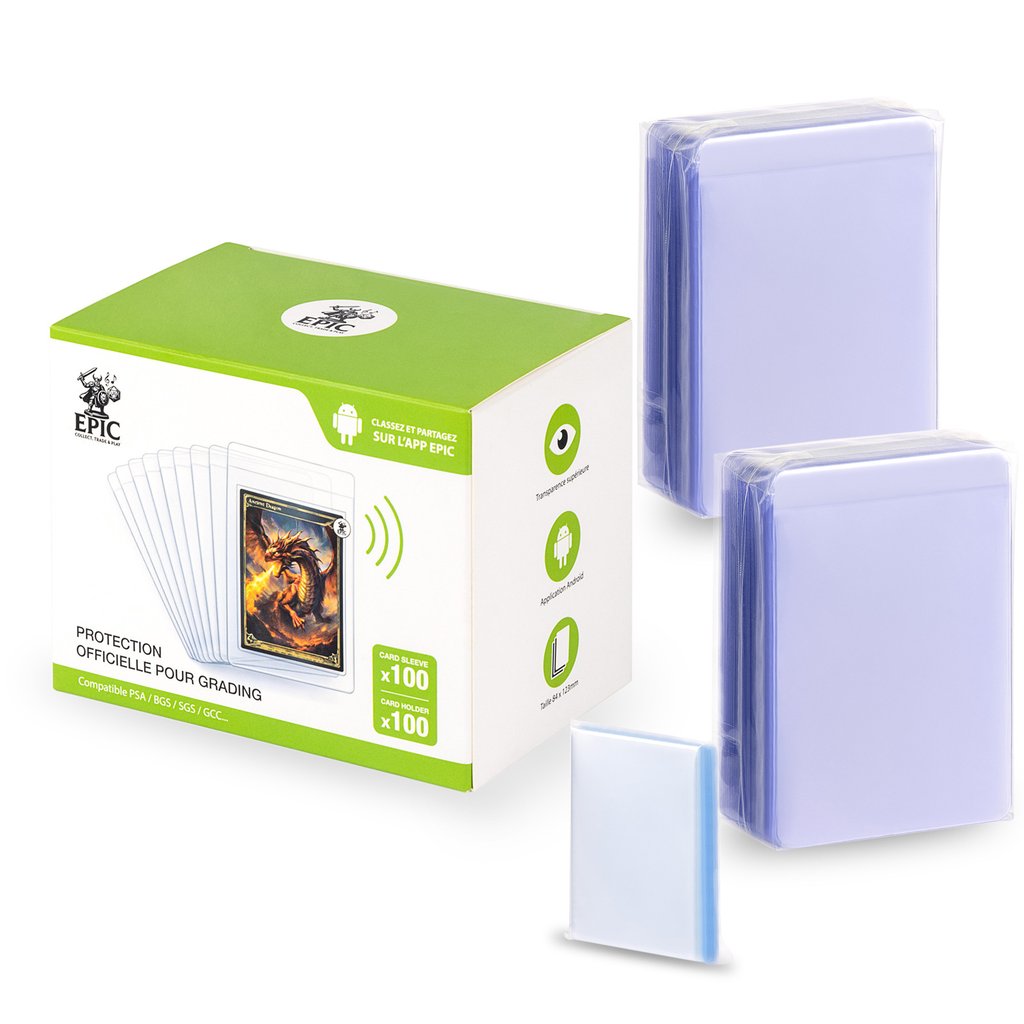
Before explaining how to use NFC for trading cards, let's review some vocabulary for those new to the equipment. There are several types of protection available:
Sleeves and "top-loaders": a soft polypropylene pouch (a sleeve), then, for the most valuable cards, a rigid top-loader.
Binders and boxes: for storage, we recommend binders with sheets that are acid-free, or acid-free cardboard storage boxes. Store cards without overcrowding them to avoid warping. Avoid PVC: PVC releases plasticizers that yellow and stick to cards over time. There are various types of binders for cards or slabs.
The "deck box": a box for players who want to organize their cards so they can play and challenge other players.
"Slabs": rigid plastic cases that protect against dust, sealed to prevent deterioration over time, issued by grading companies for the cards they certify. These grading companies issue their own cases along with a grade based on the card’s condition and rarity. Examples include the major US graders (PSA, Beckett BGS, SGC, etc.), as well as French companies: PCA, MTG, CCC, CollectAura ...
Inventory and labeling: keep a record (spreadsheet or software) with photos, rarity, condition, and provenance. Be sure to note the value, acquisition date, and serial number at the moment of purchase. This lets collectors track how a card’s value trends over time ahead of a future resale. In addition, there’s the Epic-NFC app, which gives you access to your cards and keeps everything centralized in one place.
A few tips on storage and care:
Cleaning: clean gently with a dry microfiber cloth and avoid liquid products, which can damage the paper.
Recommended storage is vertical ; store cards upright (like books) to reduce pressure and prevent warping over time.
Now, back to our main topic: an NFC tag for trading cards lets you link each physical card to a digital record — description, edition, condition, estimated value, and history.
So the question becomes: how do you use NFC tags to archive your TCG cards?
First, make sure the surface where you'll place the EPIC NFC tag is clean, dry, and non-metallic.
⚙️ Linking a card, holder, or slab to the NFC tag
1️⃣ Scanning the item’s information into the NFC tag
1. Take a photo of the collectible item
2. Open your EPIC NFC app.
3. Select "Scan Collectible."
4. Bring a blank EPIC NFC tag close.
5. Fill in the fields and choose your photo.
5. Bring the tag close to the phone.
6. Write the information to send it to the tag, with the option to permanently lock the information.
2️⃣ Attaching the tag to the item
• Stick the tag onto the item or its holder
• Place it in a visible spot
• Avoid unsuitable metal surfaces
3️⃣ Checking that it works
1. Turn on NFC on your smartphone.
2. Bring it close to the tag.
3. The record should open automatically.
📱 Using it
To view an item's information, open the EPIC NFC app:
Simply bring your smartphone close to the NFC tag. For privacy, the information in your digital item library is stored locally on your smartphone only.
✅ Best practices
• Test right after installation
• Protect the tag if the item is handled frequently
• Update the record when needed
• Keep the tag clean and dry
⚠️ Quick troubleshooting
The tag isn't responding:
• Check that NFC is turned on
• Check that your phone supports the NFC feature
• Try a different position
• Rewrite the tag if needed, using only the compatible EPIC app. For now the app is only available on Android, but an iOS version is coming soon.
Q&A (FAQ):
Q: What is an NFC tag and how does it work for a TCG card?
A: It's a passive electronic component with no battery, activated by a smartphone within about 4 cm, storing up to 888 bytes of data, and tamper-proof once locked. Compared to a QR code: NFC doesn't degrade, doesn't scratch, and doesn't need a camera.
Q: Where should I place the NFC tag on a collectible card?
A: The easiest spot is on the back of the sleeve/protective cover — never directly on the card! Or in the top-right corner, to avoid interfering with the artwork.
Our EPIC tags are ultra-thin, so they're compatible with all top-loaders and binders.
Q: Which TCGs are compatible?
A: Yes, with all TCGs, including: Pokémon, Magic: The Gathering, Yu-Gi-Oh!, One Piece Card Game, Dragon Ball Super Card Game, Lorcana, Star Wars: Unlimited, Altered, Riftbound (League of Legends), Flesh and Blood, Union Arena, Marvel Champions, Weiß Schwarz, Universus, Digimon Card Game, Naruto, MetaZoo, and more...
NFC vs. QR code vs. a scanning app for cataloging your cards — comparison
Comparison table :
Q: Does the NFC tag damage the collectible card?
A: No, as long as you never stick the tag directly onto the card. The tag should be placed on the sleeve or protective cover. The EPIC Collection tag is designed to be ultra-thin and doesn't affect the card's rigidity or condition.
Q: How much information can an NFC tag store?
A: A standard NFC tag stores between 48 and 888 bytes of text data. The EPIC Collection app uses the tag as a unique identifier — basic information can be written to the tag, while all detailed information (photos, history, value) is stored on your smartphone, with no size limit.
Q: Can my iPhone scan EPIC NFC tags?
A: The EPIC Collection app is currently only available on Android. iPhones have supported NFC reading since the iPhone 7, but compatibility with the EPIC app depends on an iOS version currently in development. It will be available before the end of 2026.
Q: Can NFC be used on sealed Pokémon booster packs?
A: Yes. The tag is stuck onto the outer packaging of the booster or sealed box, letting you track the purchase date, price, and original condition without opening the product.
In conclusion, NFC technology turns managing a TCG card collection into a digital library you can browse in a second. To learn how the full system works, visit our "How It Works" page or order your first tags from our online shop.
Happy card hunting!
Contact
Have any questions? We’ll reply promptly.
Info
fOLLOW US
© 2026. All rights reserved. Epic Collection is a trademark registered by Updynamic.

